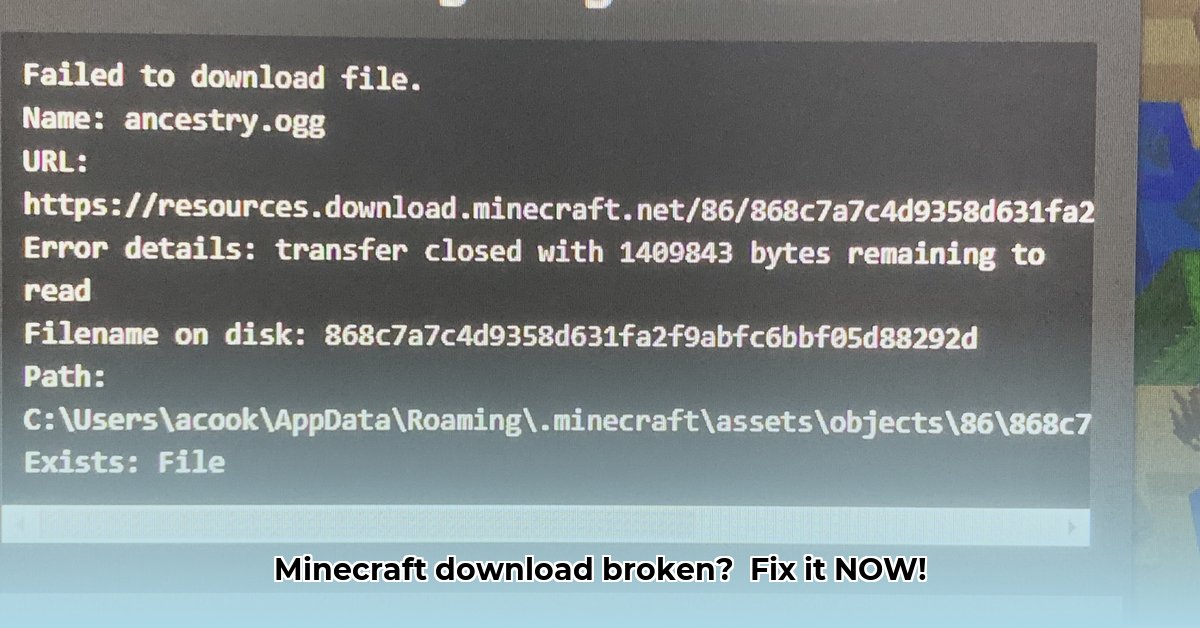
Getting that Minecraft download to work can be frustrating. This guide provides step-by-step solutions to common Minecraft download problems, helping you get back to building and exploring. For Android users, check out this helpful guide: Android downloads.
Troubleshooting Your Minecraft Download
Let's get your Minecraft download working! We'll cover simple fixes and more advanced troubleshooting steps.
1. Check Your Internet Connection
A weak internet connection is the most frequent culprit. Is your Wi-Fi unstable? Try a wired ethernet connection for a more stable download. If using mobile data, switch to Wi-Fi for a faster, more reliable download.
2. Restart Your Computer
A simple reboot often resolves minor software glitches interfering with downloads. Think of it as a quick refresh for your system.
3. Check Your Security Software
Firewalls or antivirus programs might block the Minecraft launcher. Temporarily disable them, retry the download, and then add the Minecraft launcher to your security software's exceptions list if successful. Remember to re-enable your security software afterward.
4. Clear the Minecraft Launcher Cache
The launcher's cache (temporary files) can cause problems. Clearing it involves locating the Minecraft Launcher folder (usually in your AppData folder) and deleting specific folders like "versions" and "libraries." Search online for "clearing Minecraft launcher cache [your operating system]" for specific instructions.
5. Reinstall the Minecraft Launcher
If clearing the cache doesn't work, uninstall and reinstall the launcher from the official Minecraft website. This ensures a clean, updated launcher.
6. Check Minecraft's Server Status
Server outages or high traffic can prevent downloads. Check the official Minecraft website or social media for announcements about server issues.
7. Repairing Minecraft on the Windows Store (If Applicable)
If you downloaded Minecraft via the Windows Store, a corrupted installation could be the problem. Windows has a built-in repair tool. Search for "Windows Store" in your settings, or search online for "repair Windows Store apps" for instructions on using it.
8. Run a System File Checker (SFC)
Corrupted system files can interfere with downloads. For Windows, open Command Prompt as administrator and type sfc /scannow. This might take time, but it can fix underlying system problems. (macOS and other operating systems have similar tools.)
9. Update Your Operating System
An outdated operating system can cause compatibility issues. Ensure your OS is up-to-date with the latest patches and updates, including drivers.
10. Contact Minecraft Support
If all else fails, contact Minecraft support for further assistance.
How to Fix Minecraft Launcher Download Error 0x80073d05
This error often indicates a Windows system issue, not a problem with Minecraft itself.
Key Takeaways:
- Error 0x80073d05 usually points to Windows settings or download-related apps.
- Simple checks should be done before more advanced troubleshooting.
- The steps below provide a structured approach to resolving this error.
Step 1: Simple Checks
- Check Date and Time: Incorrect system settings can cause this error. Ensure your date, time, and time zone are correct in Windows settings.
- Restart Your Computer: A simple restart can often resolve temporary glitches.
- Check Internet Connection: Verify a stable internet connection; restart your router or modem if needed.
Step 2: App Refresh
- Repair the Microsoft Store: In Windows settings, find and repair the Microsoft Store app.
- Restart the Xbox app: Close and reopen the Xbox app; reinstall if necessary.
- Reinstall Minecraft: Completely uninstall Minecraft, then reinstall using the official launcher.
Step 3: Advanced Troubleshooting (If Necessary)
- Run the Windows Store Apps Troubleshooter: Use Windows' built-in troubleshooter for Windows Store apps.
Step 4: Final Approaches (If Necessary)
- System File Checker (SFC): Run
sfc /scannowin Command Prompt (as administrator). - Deployment Image Servicing and Management (DISM): Run
DISM /Online /Cleanup-Image /RestoreHealthin Command Prompt (as administrator). Restart your computer after each.
Remember, fixing download errors is a process of elimination. Start with the simplest steps and proceed to more advanced solutions as needed. Persistence pays off!
⭐⭐⭐⭐☆ (4.8)
Download via Link 1
Download via Link 2
Last updated: Sunday, April 27, 2025